Have you ever wondered why famous YouTube personalities treat their channels as a full-time job? Well, the answer is simple! It’s because they earn handsome amount of money from their YouTube Channels.
Recently, New York Times did a profile on Olga Kay, a famous YouTuber, and revealed she has been earning $100,000 – $130,000 from her YouTube Channel per year ( thats $8.3k – 10.8k per month) for last three years.
In the same way, many Pakistani social media celebrities (and even media channels) put their videos online on YouTube. Thanks to YouTube monetisation, these YouTubers and TV channels make money when people watch their videos. This serves as a nice revenue stream for them.
Does that not sound intriguing?
In fact, even you can too earn money online by uploading videos on YouTube and bringing traffic to your YouTube channel. And here’s a guide to get you started.
How to Earn Online via YouTube
Here are simple rules:
• Make a YouTube Channel
• Make videos and upload to YouTube that will gather attention (read: viewers)
• You are going to make money (some pennies) for each video view (on average a dollar or two per 1,000 video views).
• YouTube provides opportunity for content producers to make money and to do that all you have to do is appeal to the viewers.
Below are few steps you need to make to start earning money from YouTube.
Step 1: Create a YouTube Channel
• Sign into your YouTube Account (your Google account can be used for that) • Create a channel
Step 2: Enable Your Channel for Monetisation
• Sign into your YouTube account.
• Select your account information from top right and select Creator Studio.
• From left menu, select Channel > Status and features.
• Enable Monetisation (Note: The option won’t be available if the account is disable for monetisation).
• Accept the agreement.
Step 3: Connect Your Channel To AdSense
After enabling monetisation for your YouTube Channel, you need to associate an approved AdSense account with your YouTube account.
YouTube Analytics is used to keep track of the earning, which will only be paid if you comply with the YouTube payment threshold.
Step 4: Review Video Criteria and Ad Formats
For you to get paid, it is an absolute necessity to meet two criteria:
1) Video Monetisation Criteria
• Videos should be user friendly.
• The content should be your own to be promoted commercially.
• Copyrighted videos, or those that you copy from internet won’t work here.
• You are able to provide documentation for the video and audio content used in videos.
• Video should comply with Terms of Service and Community Guidelines which can be found here.
2) YouTube Advertising Formats
• Once monetised videos are enabled, several ads (see below for more information on type of ads) may appear next to your video.
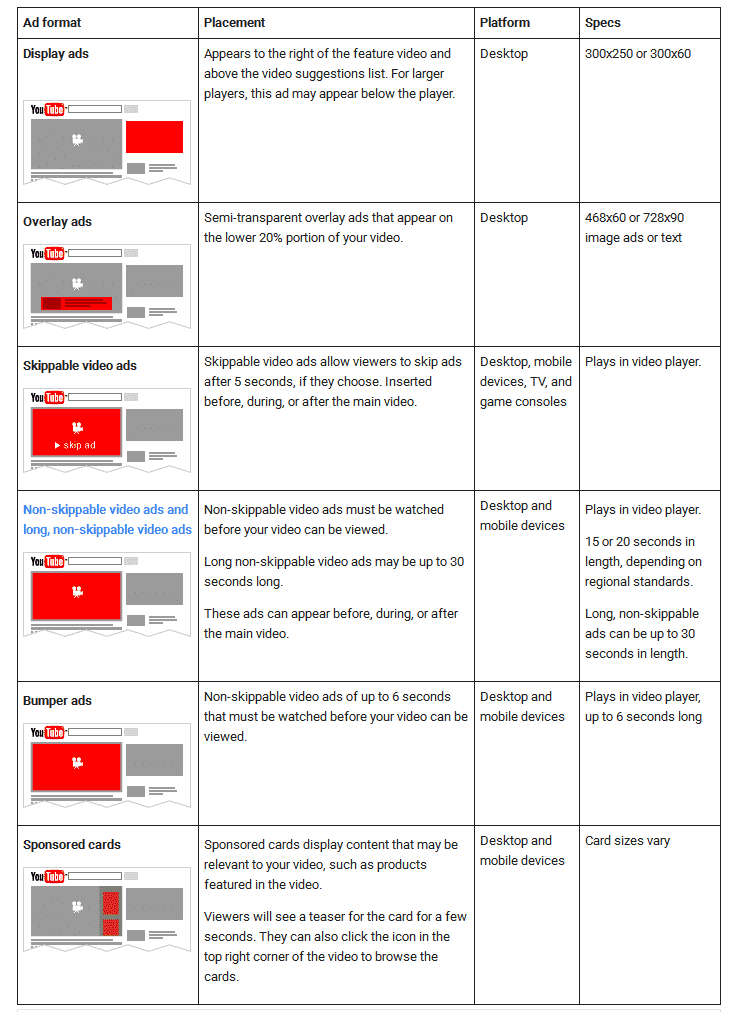
Step 5: Monetise Videos with Ads
You are fully set up for the monetised videos with your AdSense account. You can now enable eligible videos to earn money from relevant ads.
You can follow the follow steps to monetise one or more videos:
• For one video only: Follow these steps. • For more than one video: Follow these instructions to monetise them.
Additional tips to earn money from YouTube can be found here.
What is CPM, RPM and eCPM?
If you are serious about earning money from YouTube then you need to not only know these terms but also understand what they imply.
CPM:
• CPM is cost of a thousand ad impressions for the advertiser to pay when their ad is showcased.
• Time, gender, content and factors like these affect CPM.
• CPM varies from .50 cents to over $10 per thousand impressions.
• It is seasonal, implying, CPM moves upward in holidays i.e. Christmas, Eid.
• English native countries have better CPM than rest.
RPM and eCPM:
• RPM is revenue per thousand views. • YouTube takes their 45% cut of ad revenue generated by the channel from total RPM. • RPM and eCPM are similar. • eCPM = Earnings ÷ Monetized playbacks × 1000. • To properly understand earning, YouTube analytics is the best way to go.
Do’s and Don’t of Earning from YouTube
Do’s
• Make vidoes that may perform better, i.e. that are likely to be searched more • Make videos that are interesting and may make users to watch them completely • Make videos that are engaging, i.e. should be able to fetch comments, likes • Compel users to subscribe to your channel • Name your videos well, similarly add descriptions and tags appropriately so that your videos are indexed and are shown in search results • Make a lot of videos, don’t give up on making videos. • Market your videos to all possible channels (Facebook, Twitter)
Don’ts
• Most important: Don’t copy paste Videos on YouTube. You will be caught (automatically) for any copyright violations and your may face account suspension soon. • Don’t make explicit videos or those that are not allowed by YouTube TOS.
Types of Videos you can Make:
As mentioned above, your videos have to be interesting. And they must grab attention of your viewers. Here are some type of videos that you can experiment with:
• Images with voice over: Interesting facts, commentary on news items, opinions, or anything voiced over related images can make a good video.
• Lists: Lists of anything, such as “10 best catches of all times”, “10 dangerous roads turns in the world” and so on. These videos could be voiced over or text-over images.
• Tutorials: How to do’s of various things.
• Reviews: Reviews of things that we use in daily life, such as review of Uber, Review of Zong 4G, Review of PIA Lahore to Karachi flight and so on.
• Time lapse videos: They are loved by everyone.
So essentially, if you got video making skills, shot anything that could grab views and upload it to YouTube and that’s it.
Not to mention, it may take some time — up to few months — to get your first dollar. However, once you have good fan following, you can potentially make few thousand dollars a month.


